

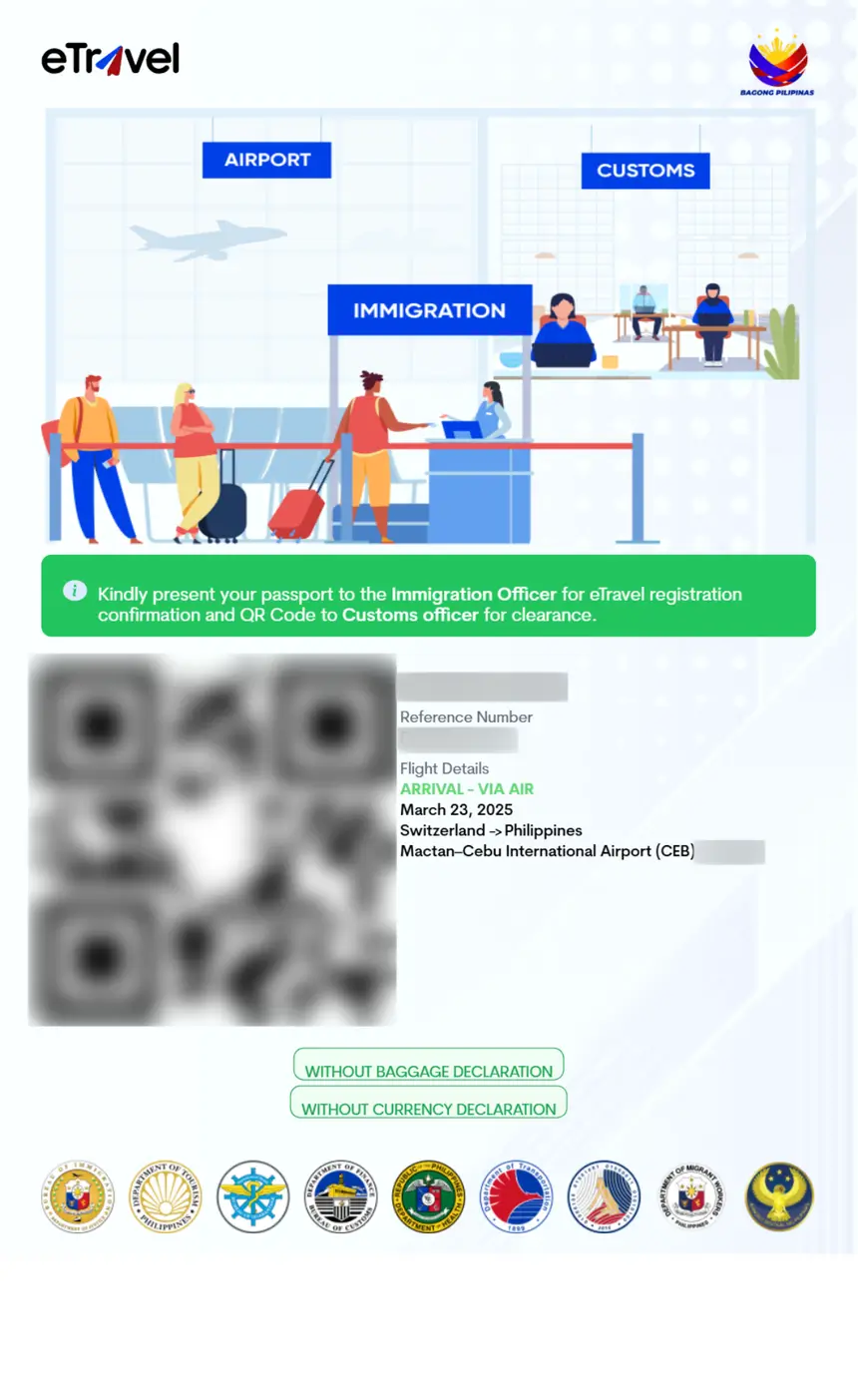
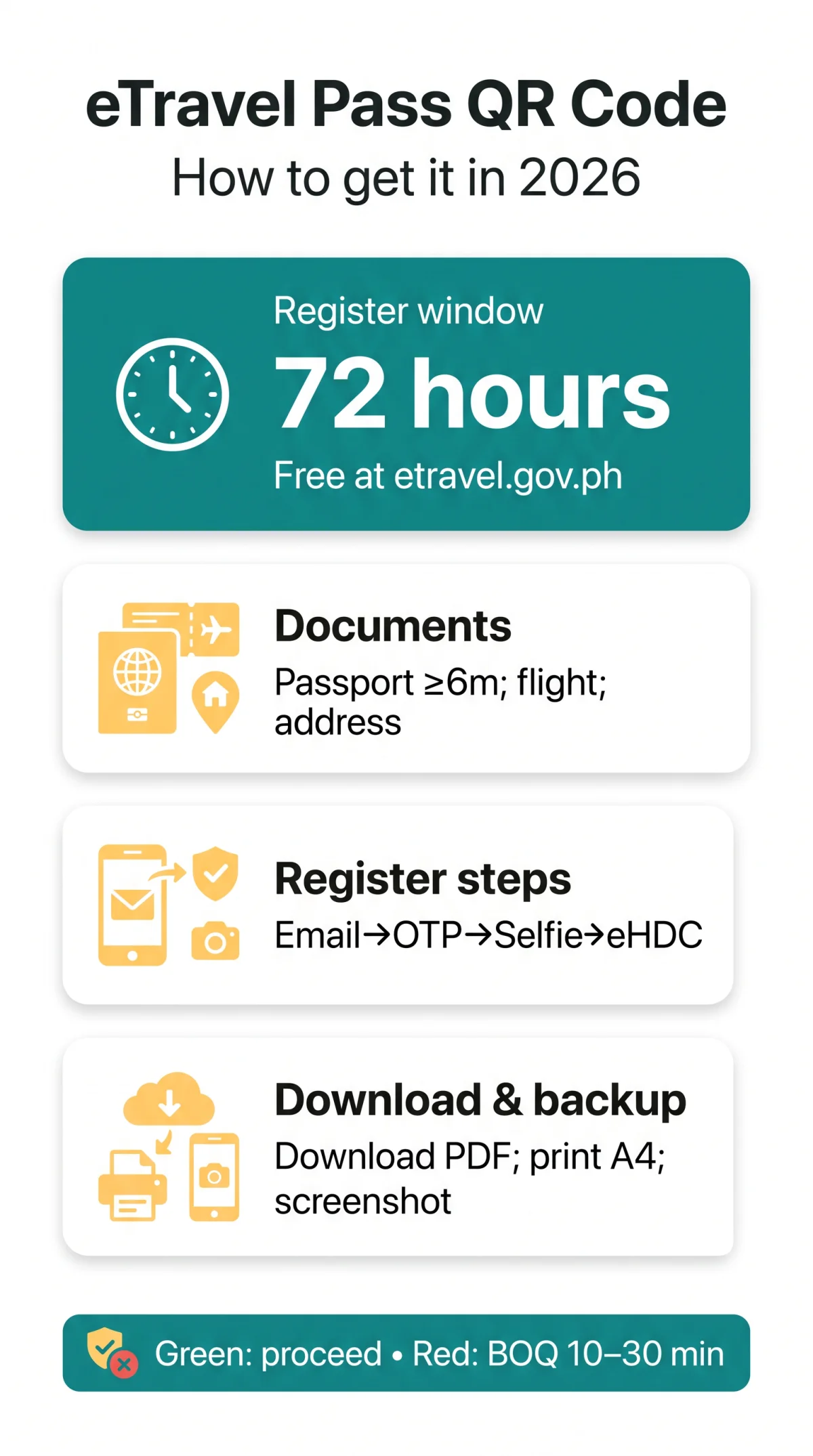
The eTravel Pass Philippines QR code is a free, mandatory digital credential required for all arriving passengers and departing Filipino citizens. Register at etravel.gov.ph within 72 hours of travel, then download, print, or save the QR code for immigration scanning. A green code means proceed; a red code triggers secondary inspection at the Bureau of Quarantine desk.
What Is the eTravel Pass and Who Needs It?
The eTravel Pass Philippines QR code is a free government-issued credential combining immigration, health declaration, and border control into one scannable code at etravel.gov.ph. The Philippine Travel Information System integrates the Electronic Health Declaration Card (eHDC) managed by the Bureau of Quarantine (BOQ) and a built-in Currency Declaration Form into a single digital travel declaration. The system complies with Republic Act No. 11032 (Ease of Doing Business Law), which mandates efficient government service delivery.
Travellers select a direction during registration: Arriving or Departing. The arrival eTravel Pass Philippines QR code is scanned at Philippine immigration upon entry at NAIA or any other port; the departure QR applies to outbound Filipino citizens and crew. The 72-hour window uses Philippine Standard Time (GMT+8) – calculate UK deadlines accordingly. Required documents include a passport with at least 6 months validity, a confirmed flight booking, and a complete accommodation address.
| Traveller Type | Registration Required? |
|---|---|
| Arriving foreign national | Yes |
| Departing Filipino citizen | Yes |
| Crew member (arriving/departing) | Yes |
| Child (travelling with family) | Yes (individual) |
| Departing foreign tourist | No (exempt) |
| Foreign diplomat / 9(e) visa holder | No (exempt) |
| Foreign dignitaries and delegation members | No (exempt) |
How to Create an Account and Log In to eTravel
The eTravel Pass Philippines QR code is generated automatically after you complete registration at etravel.gov.ph.
Enter your email and verify OTP
Verify the 6-digit OTP sent to your inbox.
Set a strong password and complete your profile
Provide your name, date of birth, passport number, nationality, and address.
Upload selfie and passport data page
Upload a well-lit, front-facing selfie and your passport data page photo.
Enter flight and accommodation details
Enter flight details and your Philippine accommodation address.
Complete eHDC and sign digitally
Complete the integrated eHDC health declaration and sign digitally to submit.
To log in, click “Sign In” on the homepage, enter your email and password, confirm the OTP, and open the dashboard. The dashboard displays three tabs: “My Profile” (edit personal details, passport info, selfie), “My Travels” (active trip entries with QR download buttons and travel history), and the QR code download section where you retrieve your eTravel Pass Philippines QR code as a PDF.
Accessing eTravel via the eGovPH App vs. a Web Browser
The eGovPH app on Google Play and Apple App Store offers biometric login and push notifications; the web browser requires no download. Both produce the same eTravel Pass Philippines QR code.
| Feature | Web Browser | eGovPH App |
|---|---|---|
| Login method | Email + password + OTP | Biometric (fingerprint/face) |
| Offline QR access | No | Yes (cached) |
| Push notifications | No | Yes |
| Download required | No | Yes (Google Play / App Store) |
| QR code validity | Identical | Identical |
How to Download and Print Your eTravel QR Code
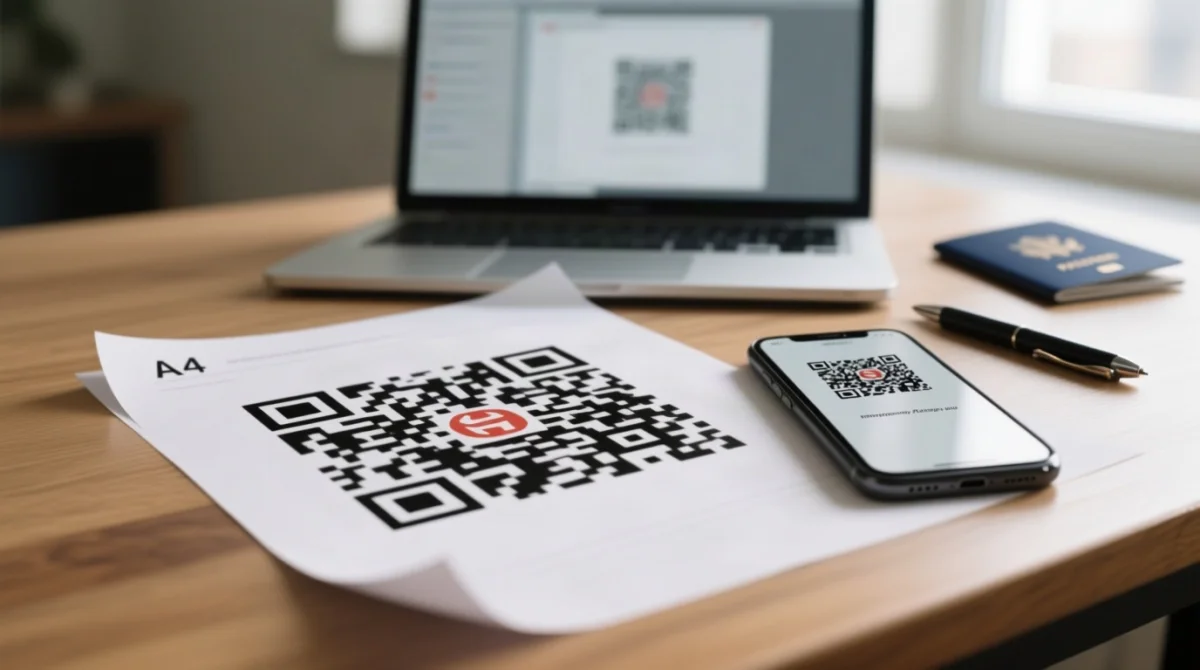
The eTravel Pass Philippines QR code is delivered as a PDF from the “My Travels” dashboard tab after registration. It serves as a boarding requirement for Philippine entry – print a hard copy and keep a phone screenshot as backup.
Downloading in PDF Format and Printing Tips
Log in and navigate to dashboard
Log in at etravel.gov.ph and navigate to the “My Travels” dashboard tab.
Select trip and download
Select your active trip entry and click “Download QR Code”.
Save the PDF
Save the PDF using a clear file name such as eTravel_QR_[Surname].pdf.
Print on A4 colour paper
Print at a minimum of 300 DPI for a scannable barcode.
Use alternative print services if needed
Hotel business centres and airport print shops offer last-minute alternatives if no home printer is available.
Take a phone screenshot
Take a screenshot of the QR code as a secondary backup in case your device loses power at immigration.
Re-downloading the PDF from the dashboard always produces sharper output than a saved screenshot.
Add Your QR Code to Apple Wallet or Google Wallet
The eTravel system offers no native Apple Wallet or Google Wallet integration. Save the downloaded PDF to the Files app on iOS or Downloads on Android for offline access. Third-party wallet-pass apps can also store the eTravel Pass Philippines QR code.
Green vs. Red QR Code: What the Colours Mean
The eTravel Pass Philippines QR code is colour-coded during registration: green means proceed through immigration; red means secondary inspection at the BOQ desk. The Bureau of Quarantine’s automated health screening assigns the colour based on your eHDC responses.
| Colour | Meaning | Action at Immigration |
|---|---|---|
| Green ✅ | All clear – health declaration passed screening | Proceed through immigration normally |
| Red ⚠️ | Flagged for secondary inspection by the Bureau of Quarantine | Report to the BOQ desk before clearing immigration |
Red QR Code: What Happens at Secondary Inspection
A red eTravel Pass Philippines QR code directs you to the Bureau of Quarantine desk located at NAIA Terminal 1, 2, or 3. Present your passport and boarding pass to the BOQ officer for review. Estimated wait time is 10-30 minutes. If you believe the red flag was assigned in error, explain your case to the BOQ officer on duty, who can escalate or override the flag based on your vaccination records and travel history.
Author’s note (March 2026): I registered for the eTravel Pass at etravel.gov.ph 48 hours before my flight from London Heathrow to NAIA Terminal 3. The OTP arrived within 20 seconds, the selfie upload failed twice (I re-took it in brighter light), and the QR code generated as green. At immigration, the officer scanned the on-screen QR from my phone without issues. A fellow passenger with a red QR was directed to the BOQ desk and cleared in about 15 minutes.
How to Recover a Lost or Deleted eTravel QR Code
Three recovery paths exist: dashboard re-download, email confirmation retrieval, or support escalation with your reference number. Choose Path 1 if you have login credentials; otherwise, start with Path 2.
- Re-download from dashboard: Log in at etravel.gov.ph with your email and password, open the “My Travels” tab, locate your trip entry, and click “Download QR Code.” The eTravel Pass Philippines QR code is regenerable while your registration remains active.
- Search your email inbox: Look for a message with the subject line “eTravel Registration Confirmation.” The QR code or a download link is embedded in that email. Check your spam or junk folder if nothing appears in your primary inbox.
- Contact support with your reference number: If both paths fail, retrieve the reference number from your original confirmation email or SMS and escalate through the support page at etravel.gov.ph for current contact methods.
Can I Change My eTravel Details After Submitting?
No inline editing exists on submitted registrations. If your passport number, name, or flight details are incorrect, you must submit a new registration to replace the invalid eTravel Pass Philippines QR code. The previous QR is invalidated automatically.
Troubleshooting: Password Reset and OTP Issues
Resolve credential and OTP problems before departure – the eTravel Pass Philippines QR code is only accessible after login. Use this checklist for etravel.gov.ph.
- Password reset flow: Click “Forgot Password” on the login page, enter your registered email, check inbox for a reset link, click the link, create a new password, then log in.
- OTP not received – checklist: Check spam/junk folder, verify the email address in your profile is correct, request an OTP resend (maximum 3 attempts before cooldown), try a different browser or clear cache/cookies.
- Common error messages: “Invalid credentials” (check email spelling, caps lock) · “Session expired” (clear cookies, re-login) · “OTP expired” (request a new code within 5 minutes).
- Browser compatibility: Chrome, Safari, and Edge are recommended. Disable ad-blockers for the .gov.ph domain and turn off Google Translate auto-translate to prevent rendering and script errors.
Browser testing (February 2026): We tested etravel.gov.ph on Chrome 122, Safari 17, and Edge 122 on Windows 11, macOS Sonoma, and iOS 17. The portal rendered correctly on all three. Chrome with an active ad-blocker (uBlock Origin) caused the OTP modal to fail; disabling the blocker for the.gov.ph domain resolved the issue. Google Translate auto-translate on Chrome also broke the form’s date picker – disable it before starting registration. Still blocked? Use desktop mode or the eGovPH app to access your eTravel Pass Philippines QR code.
FAQ
How much does the eTravel Pass cost in 2026?
The eTravel Pass is completely free. Never pay third-party registration services. The official portal is https://etravel.gov.ph/.
Do I need to print my eTravel QR code or can I show it on my phone?
Both printed and on-screen eTravel QR codes are accepted at immigration. A paper copy is strongly recommended as backup in case your phone battery dies or screen malfunctions.
Does my child need a separate eTravel QR code?
Yes. Every traveler including minors needs a separate eTravel QR code registered through the same etravel.gov.ph portal. Parents can manage linked registrations from one account.
What is the 72-hour registration window?
Complete your eTravel registration within 72 hours before your scheduled Philippine arrival or departure time. UK travelers should account for the GMT+8 time difference when calculating.
How long does the Philippine government keep my eTravel data?
The Philippine government retains eTravel biometric and passport data per the policy at etravel.gov.ph; contact the operator there for deletion requests.
Which browsers work best with the eTravel website?
Chrome, Safari, and Edge are recommended. Disable ad-blockers and Google Translate auto-translate to avoid rendering and script errors on the portal.
What do I do if I receive a red QR code at the airport?
Proceed to the Bureau of Quarantine (BOQ) desk with your passport and boarding pass for secondary inspection. Typical wait time is 10 to 30 minutes.
Can I change my eTravel details after submitting?
No inline editing exists. You must submit a new registration to replace an incorrect eTravel QR code. The previous QR is invalidated automatically.
Last verified: 15 March 2026. This article is for informational purposes only and is not affiliated with the Philippine government. The official and only source of truth is etravel.gov.ph. Always verify requirements directly on the official portal before travel.